Documents as Code (DaC)
The goal of this website is to demonstrate just how simple it is to create beautiful, professional documents using the Docs as Code (DaC) approach. Check out the Demo: DaC Is Easy for a sample project that highlights the capabilities of DaC with tools like Markdown and Pandoc. In the Tutorial: DaC Is Easy, you’ll learn how to transform a basic Markdown file (see below) into a polished document step by step.
# Introduction
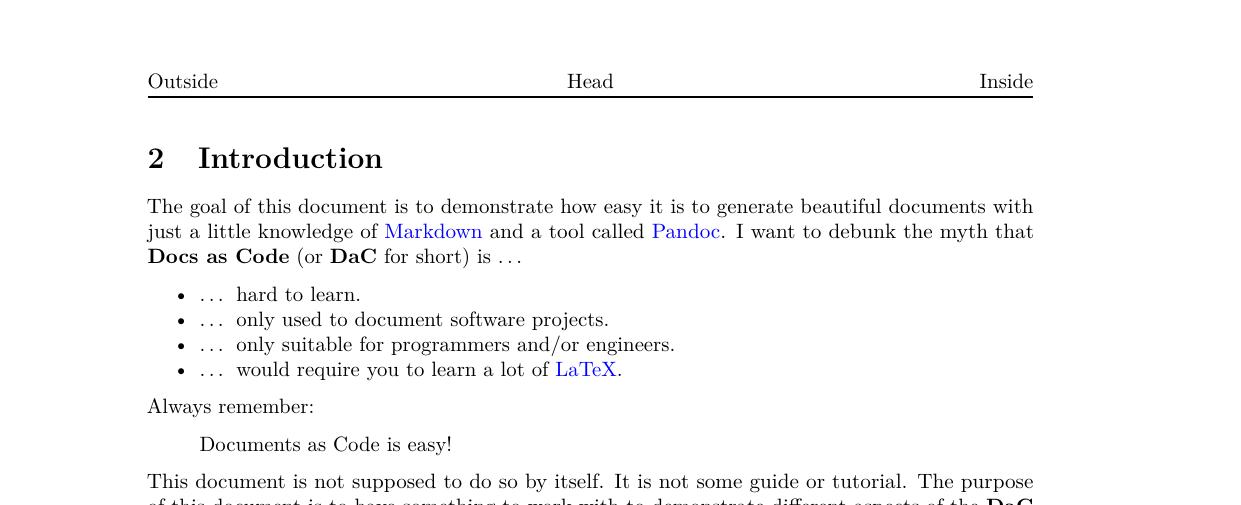
The goal of this document is to demonstrate how easy it is to generate
beautiful documents with just a little knowledge of
[Markdown][wikipedia_markdown] and a tool called [Pandoc][pandoc_homepage]. I
want to debunk the myth that **Docs as Code** (or **DaC** for short) is ...
- ... hard to learn.
- ... only used to document software projects.
- ... only suitable for programmers and/or engineers.
- ... would require you to learn a lot of [LaTeX][wikipedia_latex].
Always remember:
> Documents as Code is easy!
This document is not supposed to do so by itself. It is not some guide or
tutorial. The purpose of this document is to have something to work with to
demonstrate different aspects of the **DaC** approach to generate nice looking
documents. I set up a [website][schuam_dac] that explains everything and this
document will be used in the explanation.
It is also not a manual for Pandoc as this already exists
[online][pandoc_user_guide] or a Markdown guide, because there are already
plenty of resources available online that explain the Markdown syntax, e.g.
[this one][markdown_guide].
My plan is to set up a demonstration that is split into four levels (from
*beginner* to *pro*). The higher the level the better the generated document
will look. Nevertheless, only the highest two levels will require any
[LaTeX][wikipedia_latex] knowledge. But even at the second level, the document
will already look really professional and most likely way better than anything
you create with Word.
1. **Beginner**:
Let's start simple. Just use a plain Markdown file and the simplest form of
the `pandoc` command to build the output PDF file: no additional
options/parameters, just the bare minimum.
Assuming the source Markdown file is called `solution_beginner.md`, the
following command renders the PDF output file `solution_beginner.pdf`:
`pandoc -o solution_beginner.pdf solution_beginner.md`
1. **Intermediate**:
Here we ...
- add a first additional option to the `pandoc` command. This option
enumerates the sections.
- add some front matter with additional information about the document.
- add some additional metadata to configure the styling of the output. This
drastically improves the look of the output.
The output are three consecutively better looking output files.
1. **Advanced**:
This is the first time, a little bit of [LaTeX][wikipedia_latex] syntax is
used to further improve the look of the PDF file. But don't worry, it is
very simple and everything is explained. After that you should be able to
make changes in the given example to tweak the look further to your liking.
Pandoc can be extended by the use of filters. I show how to use one of them
as an example. This will for instance allow us to reference images (see the
[Figures section](#figures) or the [Inline Image
section](#sec:inline-images)). See [chapter @sec:inline-images].
The **advanced** level is split into two steps (two output files).
1. **Pro**:
For the **Pro** level I figured it is time to write a little LaTeX template
for Pandoc to get the maximum out of it.
All right let's get started. The following chapters won't necessarily contain
meaningful content. Their main purpose is to demonstrate different
possibilities for formatting and other features.
[pandoc_latex_docker]: https://hub.docker.com/r/pandoc/latex
[markdown_guide]: https://www.markdownguide.org/
[pandoc_homepage]: https://pandoc.org
[pandoc_user_guide]: https://pandoc.org/MANUAL.html
[schuam_dac]: https://www.dac.schuam.de
[wikipedia_latex]: https://en.wikipedia.org/wiki/LaTeX
[wikipedia_markdown]: https://en.wikipedia.org/wiki/Markdown
# Images
Images can either be added as figures or inline. When added as a figure, a
caption will be added that include the current number of the figure which is
automatically increase with every figure. When added inline, all that is added
is an image, nothing else.
## Figures
Figures are *floating* objects in [LaTeX][wikipedia_latex]. Since
[Pandoc][pandoc_homepage] used LaTeX in the background, figures might not
appear where you expect them to appear. While this might be annoying in the
beginning, this is actually a feature. Also you should always refer to an
included figure somewhere in the text. If you don't do that, you might as well
just not add the figure.
[Figure @fig:example] shows a section on the way between Santiago de Chile and
Mendoza in Argentina.
{#fig:example}
## Inline Images
With inline images, you can for example place two images next to each other:
{width=50%} {width=50%}
# Math
Something that is often needed is math expressions/equations/formulas. Just
like images math can be inserted inline or as separate entities.
## Inline Math
One of the most famous equations of all time is probably $E =
mc^2$.[^footnote_mass_energy]
## Equations
Writing the equation from the previous section inline, like I did, doesn't
really do it justice. Therefore it is also possible to render it a little more
noticeable like this:
$$
E = mc^2
$$ {#eq:mass_energy}
[Equation @eq:mass_energy] looks way better than the inline version doesn't
it?[^footnote_confirmation]
If you want, you can use superscripts and subscripts in normal text as well.
Here are two examples: H~2~O and 2^10^.
By the way, Albert Einstein published a bunch of papers. One is called "Zur
Elektrodynamik bewegter Körper" [see @einstein1905electrodynamik, pp. 42].
[^footnote_mass_energy]: According to [Wikipedia][wikipedia_mass_energy]
Einstein was the first one to propose the equivalence of mass and energy.
[^footnote_confirmation]: Of course it does. Who questioned it?
[wikipedia_mass_energy]:
<https://en.wikipedia.org/wiki/Mass%E2%80%93energy_equivalence>
# Tables
Last but not least, let's add a table to the document. This can be done in
multiple ways. Please read [Pandoc's User Guide][pandoc_user_guide] for more
information. I will just add one table that uses the most complicated type. I
wanted to use that type to demonstrate that you can create pretty complicated
tables with cells that span multiple rows and/or columns. Admittedly the
Markdown code is a little bit cumbersome, but if you don't need all the
features shown here, there are simpler table types.
: Table Example {#tbl:example_table}
+---------------+---------------+------------+
| Fruit | Prize |
+:==============+:=============:+===========:+
| Apple | green \ | 1.00 |
| | round \ | |
| +---------------+------------+
| | red \ | 1.25 |
| | round \ | |
+---------------+---------------+------------+
| Bananas | yellow \ | 0.50 |
| | curved | |
+===============+===============+============+
| Total | | 2.75 |
+===============+===============+============+
To add [table @tbl:example_table], I had to add the following to the Markdown
source file:
```markdown {.numberLines}
: Table Example
+---------------+---------------+------------+
| Fruit | Prize |
+:==============+:=============:+===========:+
| Apple | green \ | 1.00 |
| | round \ | |
| +---------------+------------+
| | red \ | 1.25 |
| | round \ | |
+---------------+---------------+------------+
| Bananas | yellow \ | 0.50 |
| | curved | |
+===============+===============+============+
| Total | | 2.75 |
+===============+===============+============+
```
# ToDos
What is left to create this demonstration:
- [x] ~~Set up the solution markdown source file.~~
- [x] ~~Set up CMake to build the output PDF file.~~
- [ ] Write the accompanying tutorial.
- [ ] Actually put the website online.
- [ ] What else?
# Feedback
If you have any form of feedback about this document or the accompanying
website, don't hesitate to send me an email. The address is:
<contact@schuam.de>. Or visit my website at <https://www.schuam.de>.
The output of the tutorial, will look like this:
When you hear about Docs as Code (or DaC), it’s often in the context of software documentation. That’s great, but I believe Docs as Code is ideal for almost any type of document — not just software projects, but also things like theses, proposals, letters, and much more. In fact, I like to think Docs can stand for "documents" just as much as it does for "documentation."
Info
This website focuses on creating documents using a DaC approach, specifically generating PDF files (at least for now). Whenever I refer to Docs, I’m talking about documents that are rendered into PDFs using this method.
It's always surprising to me how many people still rely on programs like MS Word, LibreOffice Writer, or other word processors—especially if they are programmers or engineers, though I realize this might not surprise everyone.
Info
Throughout this site, I’ll use "Word" as shorthand for any word processing tool.
I haven’t used Word for any of my own projects or personal work in over 20 years. I first started using LaTeX during my university studies, likely before the idea Docs as Code even existed. Later, I switched to Markdown in combination with Pandoc, which made the process easier thanks to Markdown’s simpler syntax compared to LaTeX.
Despite my personal preference for these tools, I’ve occasionally had to use Word, either to help friends with their documents or due to work requirements. Whenever I introduced alternatives, I often encountered objections like:
I don't want to program my dissertation, but write it.
This came from a friend studying law who was struggling with Word’s limitations, but wasn’t ready to try a different approach.
LaTeX is too complicated too learn.
This came from a colleague. We worked together on a concept for the hardware and software of an embedded device. I was annoyed by Word and complained that we had to use it. Without me mentioning any alternative yet, he said the above sentence.
When using plain text, I can't see the final output.
I don’t recall who said this, but I’ve heard it more than once.
In all these situations, I couldn’t convince them to try another tool. Looking
back, I realize part of that was on me. Sometimes I wasn’t prepared to explain
the benefits of Docs as Code, and other times I lacked quick examples to
show how easy and powerful it can be. This website is my way of changing that.
If it helps anyone else along the way, even better  .
.
Let's get started and explore how easy it is to use DaC.