Advanced
Alias
If you use the Docker image (see System Setup)
and you haven't set up the pandock alias yet, replace pandock with
docker run --rm -it --user $(id -u):$(id -g) -v .:/data schuam/dac:v1.0.0
in the following commands. If you installed Pandoc directly on your system,
replace pandock with just pandoc. For more information, refer to the
System Setup page.
Note
All commands in this tutorial should be run from within the project
directory (solution) that was mentioned on the Layout page.
Make sure you're in the correct directory. If you put the solutions
directory into your home directory, you can navigate to the solutions
directory like so:
cd
cd solution
If you placed the solutions project somewhere else, use the appropriate
cd command to navigate to that place.
After completing the Intermediate level, your project directory should look like this:
$ tree
.
├── build
│   ├── solution_beginner_1.pdf
│   ├── solution_intermediate_1.pdf
│   ├── solution_intermediate_2.pdf
│   └── solution_intermediate_3.pdf
├── img
│   └── image.jpg
└── src
    ├── bib
    │   └── bibliography.bib
    ├── md
    │   ├── front_matter.md
    │   └── solution.md
    └── meta
        └── style_intermediate.yml
At this point, we only have to fix some minor issues with the output of the Intermediate level. Let's get to work.
Page Breaks
One thing that I don't like about the last generated PDF in the Intermediate level is the fact that there is no page break between the "List of Tables" and the "Introduction" section.
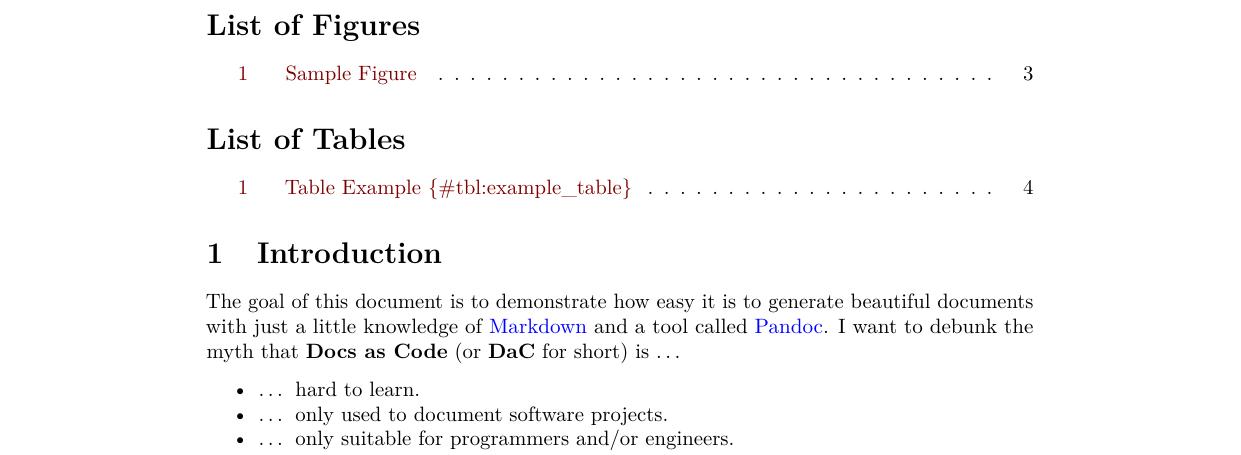
This happens because Pandoc’s default LaTeX document class (article) does not insert a page break at that point. Other classes may behave differently, but I chose not to change the default class for two reasons:
- To keep the process straightforward.
- To demonstrate a feature of Pandoc: LaTeX commands embedded in Markdown source files are passed directly to the LaTeX template that Pandoc uses in the background.
Let's see this in action. Create a new Markdown file (solution_advanced.md)
and save it in the src/md directory. The content of the file should look like
this:
| src/md/solution_advanced.md | |
|---|---|
1 2 3 4 | |
Then, run the command:
$ pandock \
     --number-sections \
     --citeproc \
     --metadata-file=src/meta/style_intermediate.yml \
     -o build/solution_advanced_1.pdf \
     src/md/front_matter.md \
     src/md/solution_advanced.md \
     src/md/solution.md
Warning
Just as in the Intermediate level, this command still
issues some warnings. By the end of this level, the warnings will be gone
 .
.
[WARNING] Citeproc: citation eq:mass_energy not found
[WARNING] Citeproc: citation fig:example not found
[WARNING] Citeproc: citation tbl:example_table not found
When you run the command, Pandoc will concatenate the three input files,
placing the \newpage{} command right before the "Introduction" section in the
solution.md file. If you check the output file
build/solution_advanced_1.pdf,
you should now see the page break after the List of Tables.
Tip
If you’re working on a more complex document (like a thesis), consider
using a different LaTeX document class, such as book or report, as
mentioned in the Style section of the
Intermediate level. These classes typically handle
such a page break automatically, eliminating the need to add them manually.
Header and Footer
If you'd like to add a header or footer to your document, it’s worth noting that while some LaTeX document classes might include them by default, the article class does not. This gives us a great opportunity to explore some additional Pandoc features:
-
Besides embedding LaTeX commands directly in the source code (as we saw earlier), you can also use metadata variables to inject LaTeX code into the template that Pandoc uses internally. Three such metadata variables exist for this purpose:
header-includes: This variable inserts code into the preamble of the LaTeX template. You can use it to add LaTeX packages, redefine commands, or include any code that typically belongs in the preamble of a LaTeX document. Keep in mind that “header” in this context refers to the LaTeX document preamble, not the document’s header.include-before: This variable allows you to inject LaTeX code or what ever other content you want into the document. It is include before the actual body of the document that comes from the source code. Instead of using a metadata variable, you can archive the same with one of Pandoc's command line options --include-before-body.include-after: This variable allows you to inject LaTeX code or what ever other content you want into the document. It is include after the actual body of the document that comes from the source code. Instead of using a metadata variable, you can archive the same with one of Pandoc's command line options --include-after-body.
-
If you set the same metadata variable multiple time, the latter occurrence overwrites any previous occurrences.
With that said, let's create a new file called style_advanced.yml, place it
in the src/meta directory, and add the following code:
---
classoption:
  - titlepage
  - twoside
geometry:
  - top=2.5cm
  - bottom=2.5cm
  - inner=3.5cm
  - outer=2.5cm
  - heightrounded
header-includes: |
  \usepackage{lastpage}
  \usepackage{fancyhdr}
  \pagestyle{fancy}
  \renewcommand{\headrulewidth}{1pt}
  \renewcommand{\footrulewidth}{1pt}
  \fancyhead[RE,LO]{Inside}
  \fancyhead[CE,CO]{Head}
  \fancyhead[LE,RO]{Outside}
  \fancyfoot[RE,LO]{Inside}
  \fancyfoot[CE,CO]{Foot}
  \fancyfoot[LE,RO]{\thepage/\pageref*{LastPage}}
---
Now, run this command to generate the updated PDF:
$ pandock \
     --number-sections \
     --citeproc \
     --metadata-file=src/meta/style_intermediate.yml \
     --metadata-file=src/meta/style_advanced.yml \
     -o build/solution_advanced_2.pdf \
     src/md/front_matter.md \
     src/md/solution_advanced.md \
     src/md/solution.md
If you don't want to run the command yourself, you can download the generated output PDF.
Let’s break down the style_advanced.yml file. While I won't go into full
detail, you can read more in this excellent article on Headers and
footers.
classoption:
  - titlepage
  - twoside
Since style_advanced.yml is applied after style_intermediate.yml in our
command, the classoptions in the new file overwrite the previous ones. The
twoside option reflects how books are structured: even-numbered pages are on
the left, and odd-numbered pages are on the right. LaTeX will now adjust the
layout accordingly.
geometry:
  - top=2.5cm
  - bottom=2.5cm
  - inner=3.5cm
  - outer=2.5cm
  - heightrounded
Notice how geometry now uses inner and outer margins instead of left and right.
In a twoside document, the inner margin is where even-numbered and
odd-numbered pages meet (the right side of an even-numbered page and the left
side of an odd-numbered page). The outer margin is the opposite (left of
even-numbered pages, right of odd-numbered pages). While it may seem complex,
I'm sure you will figure it out when you think about it.
header-includes: |
  \usepackage{lastpage}
  \usepackage{fancyhdr}
  \pagestyle{fancy}
  \renewcommand{\headrulewidth}{1pt}
  \renewcommand{\footrulewidth}{1pt}
  \fancyhead[RE,LO]{Inside}
  \fancyhead[CE,CO]{Head}
  \fancyhead[LE,RO]{Outside}
  \fancyfoot[RE,LO]{Inside}
  \fancyfoot[CE,CO]{Foot}
  \fancyfoot[LE,RO]{\thepage/\pageref*{LastPage}}
These lines create headers and footers for the document (except the title page). For more information, the Header and footer article is an excellent resource. Here’s a brief explanation:
- The
lastpageLaTeX package allows you to reference the total number of pages. This is done in the footer. - Both headers and footers can have up to three parts: left, center, and right.
The commands
\fancyheadand\fancyfootare used to specify their content. R,C, andLrefer to "right", "center", and "left".EandOrefer to "even" and "odd" numbered pages. After specifying the location, the actual content is enclosed in curly braces {}.
Info
The lastpage package and the pandoc-crossref filter (explained below)
are the reasons why I built a custom docker
image. It’s based on the "official"
pandoc/latex image but includes
these additional features.
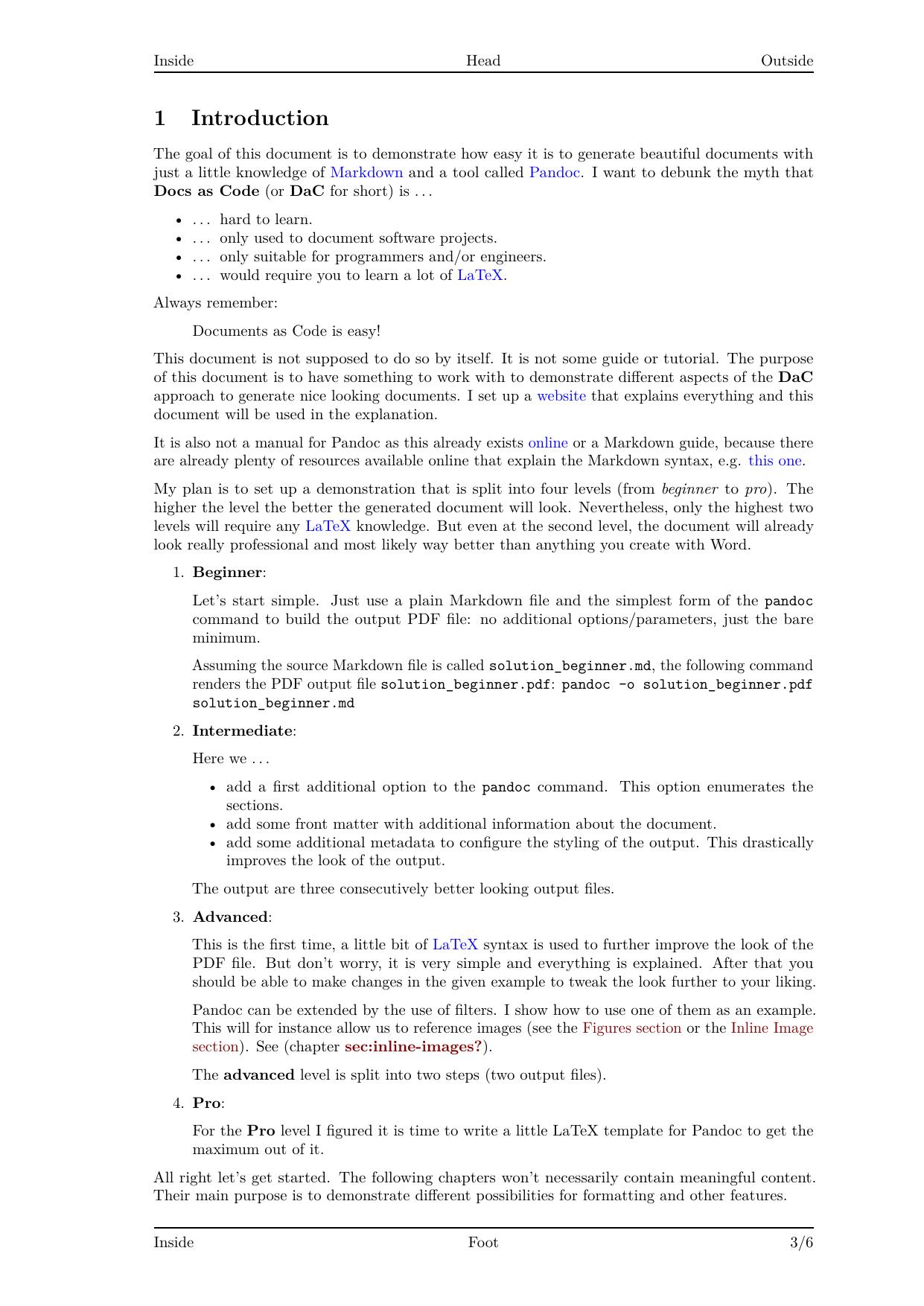
Let’s check the third page of the generated document. Since it’s an odd-numbered page, the left side is the "inner" side, and the right is the "outer" side. Notice that the inner margin is wider. You’ll also see the header and footer, which correctly indicate that this is page 3 of 6.
Links to Images, Tables, Equations, and Sections
The last topic I want to cover in the Advanced level is creating links to images, tables, and equations. You might have noticed some issues with the current output, as shown in the following images:



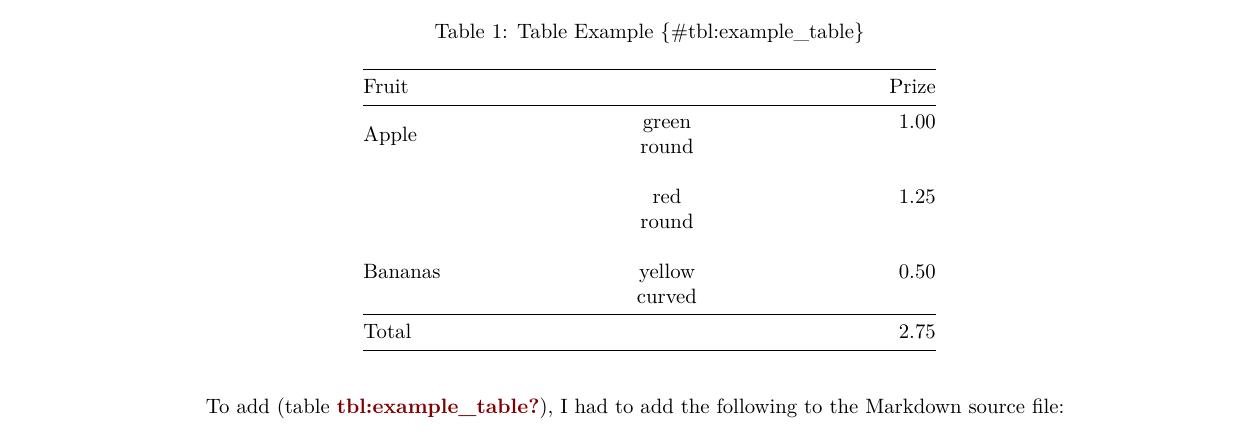
These problems can be solved using the
pandoc-crossref filter. It
allows you to add labels to figures, tables, and equations for easy referencing
elsewhere in your document. Here's an example of how this is applied in the
solution.md file:
(...)
[Figure @fig:example] shows a section on the way between Santiago de Chile and
Mendoza in Argentina.
{#fig:example}
(...)
$$
E = mc^2
$$ {#eq:mass_energy}
[Equation @eq:mass_energy] looks way better than the inline version doesn't
it?[^footnote_confirmation]
If you want, you can use superscripts and subscripts in normal text as well.
(...)
: Table Example {#tbl:example_table}
+---------------+---------------+------------+
| Fruit | Prize |
+:==============+:=============:+===========:+
| Apple | green \ | 1.00 |
| | round \ | |
| +---------------+------------+
| | red \ | 1.25 |
| | round \ | |
+---------------+---------------+------------+
| Bananas | yellow \ | 0.50 |
| | curved | |
+===============+===============+============+
| Total | | 2.75 |
+===============+===============+============+
To add [table @tbl:example_table], I had to add the following to the Markdown
source file:
```markdown {.numberLines}
(...)
While Pandoc automatically adds labels to sections, for using them with
pandoc-crossref it is useful to set the metadata variable autoSectionLabels
to true. This is done in solution_advanced.md (as seen earlier). This
prefixes section labels with sec: and ensures numbered section links, but it
may break older references without the sec: prefix.
In the code snippet below (from the solution.md file), you’ll see three
section links. The first one worked previously but will break with the next
command. The second and third links didn't work before but will function
correctly once we run the upcoming command.
(...)
   Pandoc can be extended by the use of filters. I show how to use one of them
   as an example. This will for instance allow us to reference images (see the
   [Figures section](#figures) or the [Inline Image
   section](#sec:inline-images)). See [chapter @sec:inline-images].
(...)
For more details on how to use this filter and the syntax it requires, refer to the pandoc-crossref documentation.
To apply the filter, run:
$ pandock \
     --number-sections \
     --filter pandoc-crossref \
     --citeproc \
     --metadata-file=src/meta/style_intermediate.yml \
     --metadata-file=src/meta/style_advanced.yml \
     -o build/solution_advanced_3.pdf \
     src/md/front_matter.md \
     src/md/solution_advanced.md \
     src/md/solution.md
Warning
The order of --filter pandoc-crossref and --citeproc is important. Both
use the same syntax for links, and pandoc-crossref needs to process the
links before citeproc gets to work.
Again, if you don't want to run the command yourself, you can download the result. The previously mentioned parts of the output look like this now:



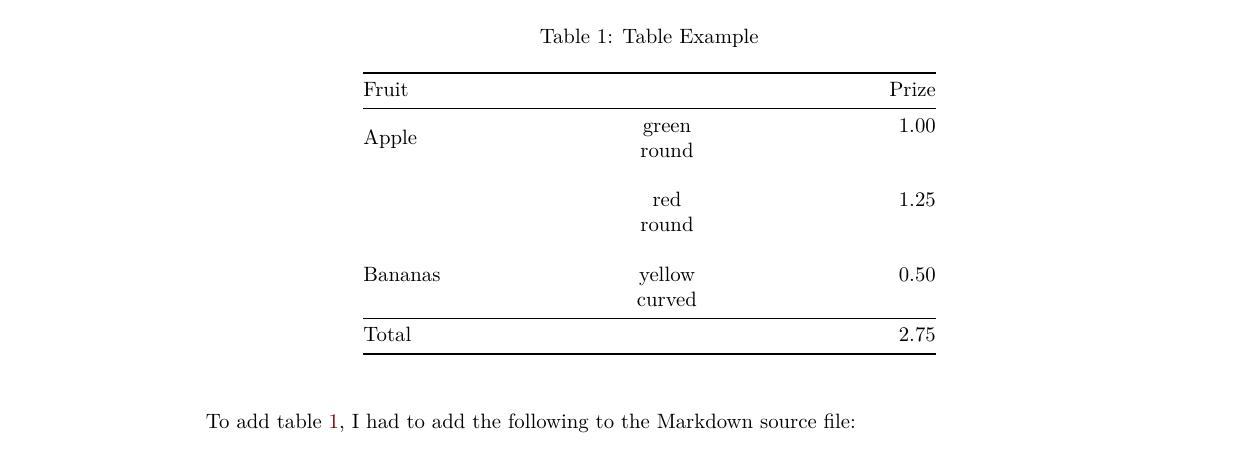
Nice! By now your project directory should look like this:
$ tree
.
├── build
│   ├── solution_advanced_1.pdf
│   ├── solution_advanced_2.pdf
│   ├── solution_advanced_3.pdf
│   ├── solution_beginner_1.pdf
│   ├── solution_intermediate_1.pdf
│   ├── solution_intermediate_2.pdf
│   └── solution_intermediate_3.pdf
├── img
│   └── image.jpg
└── src
    ├── bib
    │   └── bibliography.bib
    ├── md
    │   ├── front_matter.md
    │   ├── solution_advanced.md
    │   └── solution.md
    └── meta
        ├── style_advanced.yml
        └── style_intermediate.yml
Conclusion
By now, you should be able to create high-quality documents. I understand that the generated output might look a bit busy, but that’s because I wanted to demonstrate many features in a relatively short document. Even so, I’d argue it still looks far better than any result you’d get using Word!
While using the DaC approach from this tutorial may initially take longer
than clicking around in Word, once you’ve done it a couple of times, it will
become much faster — and you’ll never want to go back  .
.
The Pro level will explore how to write your own LaTeX templates for Pandoc. While this might be necessary in some cases, for most situations, the techniques you've learned so far should be sufficient. Have fun using your new skills!